Fences-style tools have always been a little self-defeating: you buy them to stop doing things by hand, then spend an evening dragging icons one at a time and clicking through nested menus to define rules.
PecoFence takes a different angle — it exposes its configuration as a command line and lets an AI agent read and write your desktop layout directly.
What it is
A Windows 11 desktop organizer. Open source, free, Apache 2.0. A native Rust application aimed squarely at Stardock Fences: keep files in glass panels, switch between projects with tabs, live folders, a peek shortcut. Currently v0.1.5, a 2.7 MB portable download.
The real difference from Fences, though, is that it left a door open for AI.
There used to be a demo video here — it walked through a ComfyUI bundle, but it was recorded on a PecoFence desktop, so you could see how the fences actually felt to use. The uploader has since taken it down and the player now only shows a takedown notice, so it is no longer embedded.
The quickest way to get that feel is the 2.7 MB portable build: drop a window into a fence, create another, switch tabs twice. The difference from Fences shows up within seconds.
What makes "let AI organize my desktop" hard
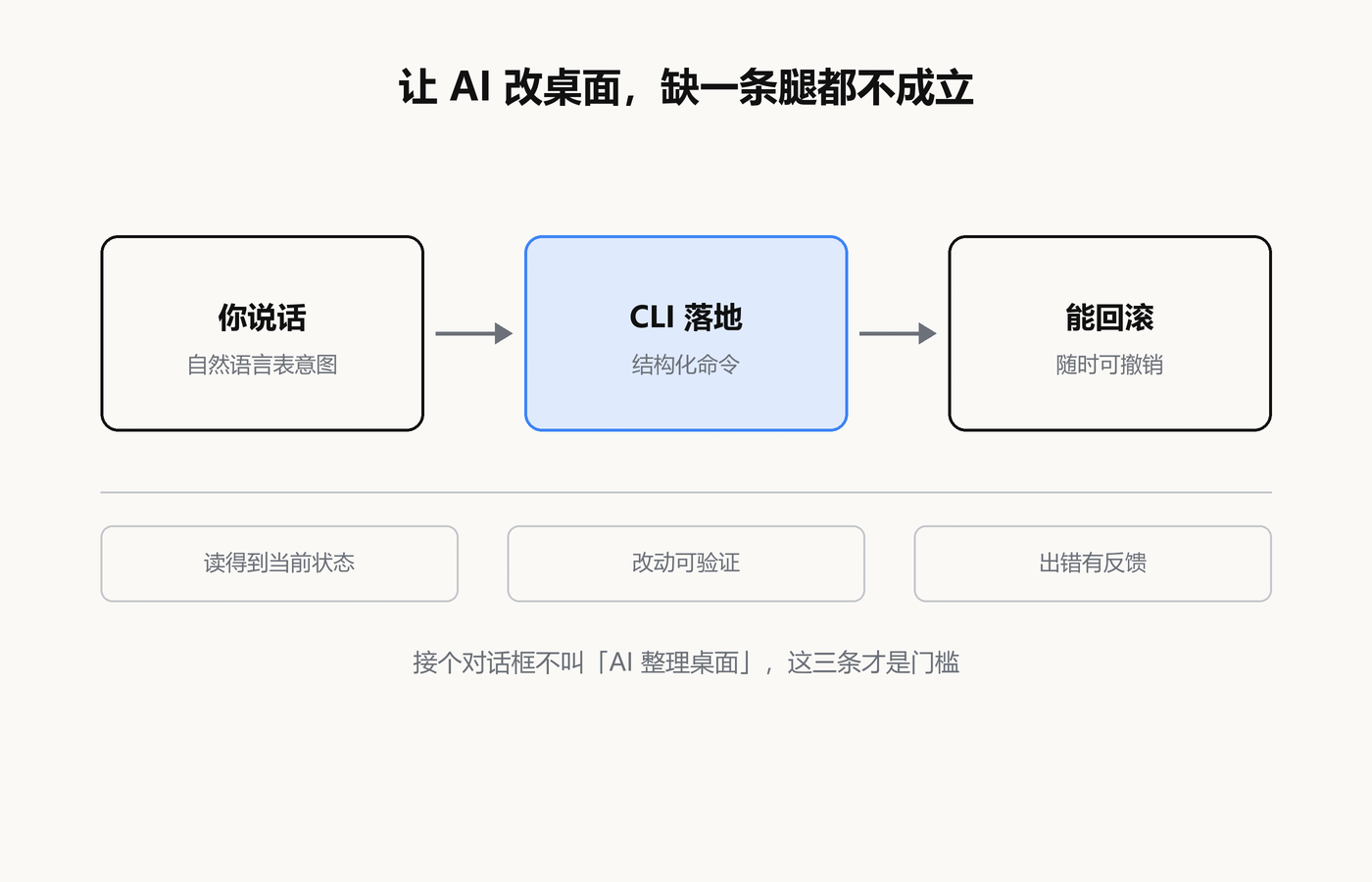
The phrase has been worn out over the last two years, and very little has actually shipped. The hard part is not wiring up a chat box — it is letting an agent change your things safely and verifiably.
A desktop layout is a high-stakes target. Get it wrong and you cannot find your files the next morning. So a serious implementation has to solve three problems: the agent must be able to read the current state, changes must be reversible, and failures must come back in a form the agent can act on.
PecoFence's answer is a bundled pecofence-cli rather than a chat window bolted to the side. You describe what you want in plain language to Claude Code, Codex or Cursor; the agent reads your current fences and settings, then calls the CLI to actually apply the changes.
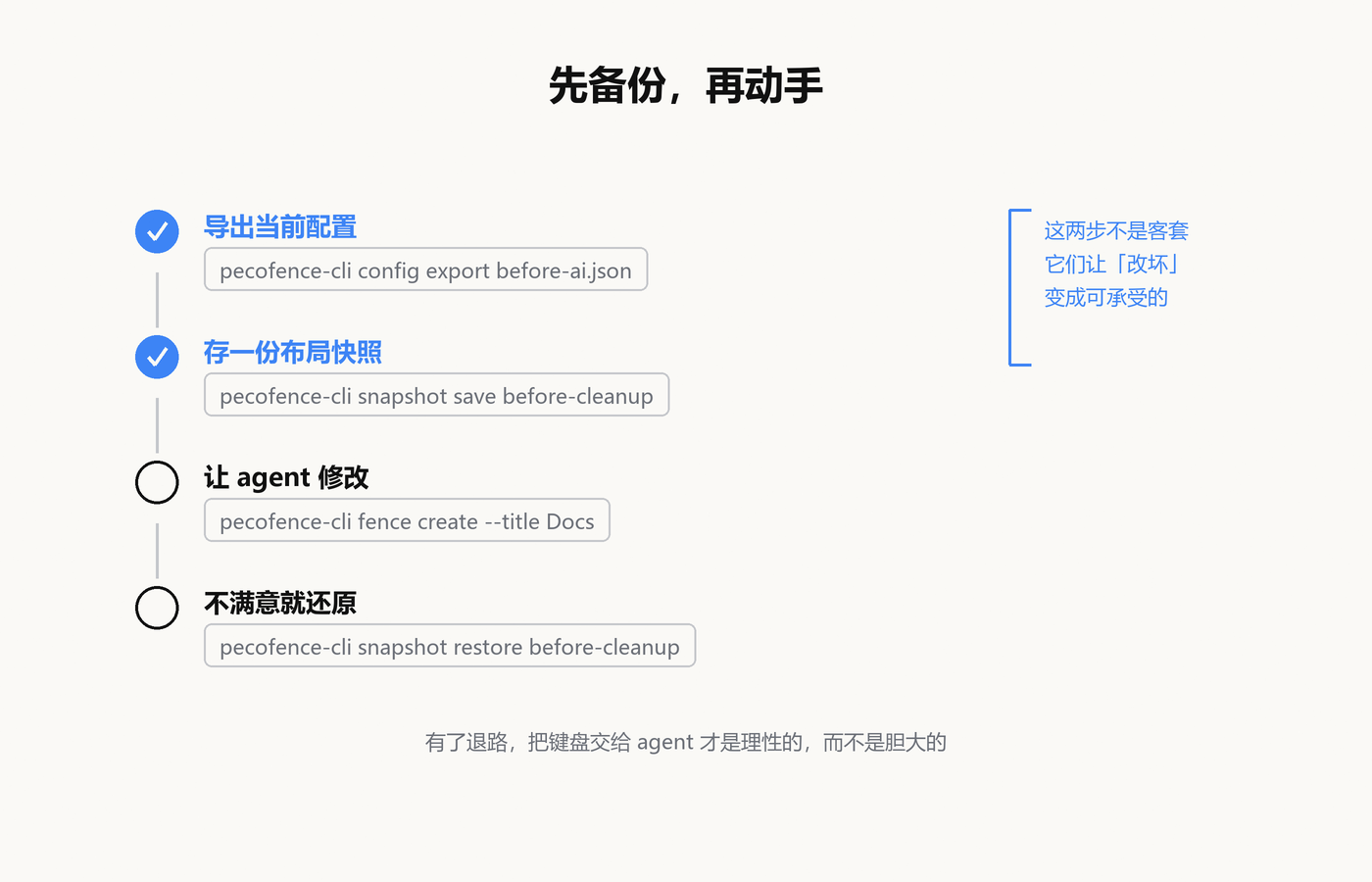
The example prompt in the repository is worth reading closely, because it states the design intent — have the agent back up before it touches anything:
Use pecofence-cli to configure my desktop. First read pecofence-cli skill and pecofence-cli describe, then inspect my current settings and fences. Back up my configuration before changes. Switch to dark mode and make all fences more transparent.
The command sequence that produces is:
pecofence-cli config export "$env:USERPROFILE\pecofence-before-ai.json"
pecofence-cli snapshot save before-cleanup
pecofence-cli fence create --title Docs
pecofence-cli rule add --name PDFs --ext pdf --to Docs --index 0
pecofence-cli rule apply
pecofence-cli settings set theme dark
pecofence-cli fence set --all opacity clear
Export the config, save a layout snapshot, and only then start editing. Those two steps are not politeness — they are the precondition that makes "an AI can safely touch this" true.
Designed for an agent, not merely "agent-compatible"
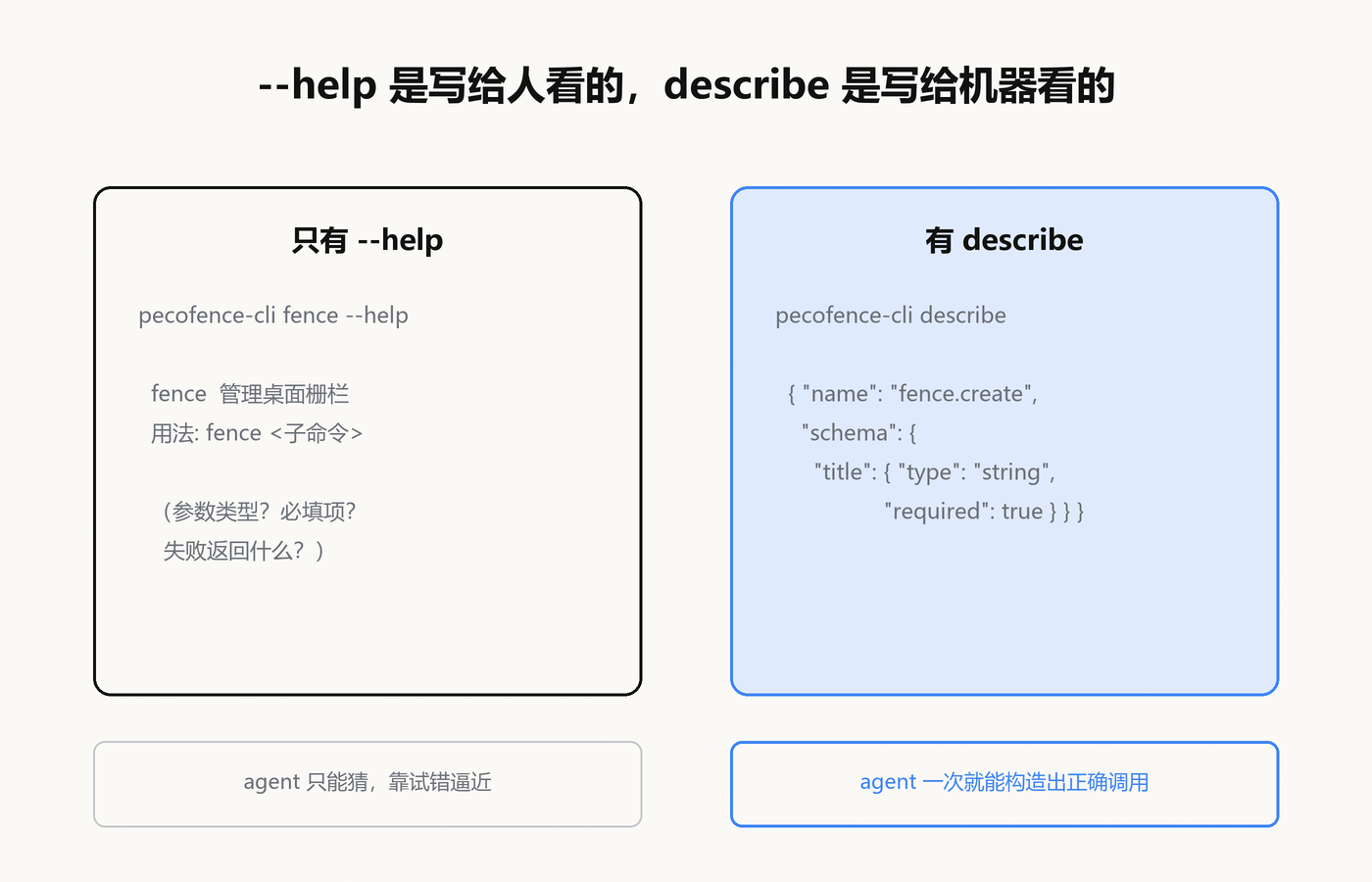
Look at the describe subcommand. It is not help text for a human — it is a command catalog and JSON Schema for a machine to read.
That distinction carries the weight. A person wants to know roughly what a command does. An agent needs to know what the arguments are called, what types they take, which are required, and what failure returns. With a --help-only CLI, the agent is left guessing and retrying; with a CLI that emits its own schema, it can construct a correct call on the first attempt.
Alongside it there is a skill subcommand that prints a guide written for the agent, and two behaviours that are called out explicitly: JSON results report what actually changed, and application-level errors are structured, so the agent can pick its next step.
Those three things — schema, self-description, structured errors — are the line between "designed for an agent" and "supports an agent." The former is an interface; the latter is just the same thing made callable from the command line.
The rest of it is a competent desktop organizer
AI alone would make it a toy. The fundamentals are all there.
Four ways to group things. Make a fence per project and drag, resize, snap it into place. Put a live folder on the desktop and browse subfolders with changes reflected as they happen. Double-click the desktop to hide every fence, double-click again to bring them back. Collect related fences into tabs, switch from Work to Art in one click, and detach a tab into its own fence when you need the room.
A shortcut. Ctrl + Alt + Space lifts every fence above the current application; grab what you need and press Esc to return. The "Peek" interaction solves a real annoyance: the file is on your desktop, you are inside a fullscreen application, and you do not want to switch windows.
Automatic sorting rules. By type, extension, name, wildcard, shortcut target, time and size. New files walk into the right fence on their own. The important part is that rules change only which fence a file appears in — they do not move the file. Files stay where they are; automatic sorting will not quietly reorganize your disk. Manual drags behave like File Explorer.
A long list of small details. Explorer context menus, drag and drop, copy/paste, multi-select, thumbnails, and icon/list/details views; fences roll up to their title bar and expand on hover; layouts can be locked; snapshots, daily backups, config import/export, and moving fences between displays.
Footprint. A native Rust app with the WebView2 settings panel loaded on demand. The native rewrite earns its keep here — Electron-based desktop utilities routinely sit at a few hundred megabytes resident, while this is a 2.7 MB portable bundle.
Themes, and a couple of rough edges
Two visual styles, Fluent and Liquid Glass, with light and dark modes, per-fence colours, opacity and icon tinting all adjustable.
One thing worth stating plainly: the glass effect uses the static wallpaper. It does not refract other applications or live video wallpapers.
Someone on LINUX DO measured exactly that and reported that under the Liquid Glass theme it shows through Lively Wallpaper-style dynamic backgrounds, revealing the original static desktop wallpaper underneath. Strictly speaking that is a bug, but the community reaction was interesting — several people found the see-through effect attractive on its own and suggested keeping it as a feature. The author did not rush to fix it. That kind of feedback only surfaces when real users run a live wallpaper.
Installing
Three routes, same build, pick your preference:
- Microsoft Store: signed by Microsoft, updates automatically, never shows a SmartScreen prompt. The Store edition puts
pecofence-clion your PATH. - Portable ZIP: download
pecofence-v<version>-x64-portable.zipfrom Releases, extract the whole thing into a folder and runpecofence.exe. KeepWebView2Loader.dllandpecofence-watchdog.exebeside it. Portable builds are unsigned, so the first launch may show SmartScreen — choose More info → Run anyway. - winget:
winget install DayuanJiang.PecoFenceinstalls that same portable build without the SmartScreen prompt. On the portable build, give your agent the full path topecofence-cli.exe.
The first launch creates four fences in your chosen language: Programs, Folders, Files and documents, and Desktop. Native Windows desktop icons are restored when you exit.
Configuration lives in %APPDATA%\PecoFence\config.json. Add --portable to keep it in a config folder beside the executable — handy for a USB stick.
Why this approach is worth copying
Back to that self-defeating feeling: an organizer's value is saving you effort, yet the traditional tool makes configuring it the effort.
What PecoFence does is abstract configuration from "GUI operations" into "a programmable interface," then hand the interface to an AI. In that combination the AI is not a gimmick — command lines exist for automation, and an AI is simply the most usable automation front-end yet.
What actually determines whether it lasts, though, is the other two things: backup and snapshot are default actions, and error feedback is structured. With those two in place, the cost of an agent breaking something is low enough to accept. Anyone adding an AI layer to their own tool should copy both.
As for the tool itself — whether your desktop is messy enough to need one is between you and your desktop. But if you have never been able to stomach Stardock's "pay first, then configure it by hand" logic, this 2.7 MB thing is worth a try.
Sources
- Original post: 【免费开源】做了个免费开源的 Windows 11 桌面整理工具 PecoFence… — LINUX DO, by @dogie, 9 October 2026
- Project: DayuanJiang/PecoFence (Apache-2.0) · website
- Demo video BV1c6eb6MEzB (uploader @comfyui--) has been removed; no embed — see the text walkthrough above
This article is a rewrite built on the original post, supplemented with information from the repository README and community reports. The opinions and judgements here are the author's own and do not represent the original poster or the project.